Tour the console
The console is the terminal application that opens when gg is run with no arguments. It shows what is waiting on a person, every flight, the organisation’s machines and more, and every action in it has a key. It also holds AI agent sessions beside gg itself, so a person can work with several agents and switch between them and gg without leaving the terminal. This page covers the keys needed to find the way around. Console keys lists all of them.
The console needs a signed-in machine; Sign in covers that. If nobody is signed in when the console opens, it offers to sign in. The console is not available on Windows, where gg is a command-line tool only.
To open it, run:
gg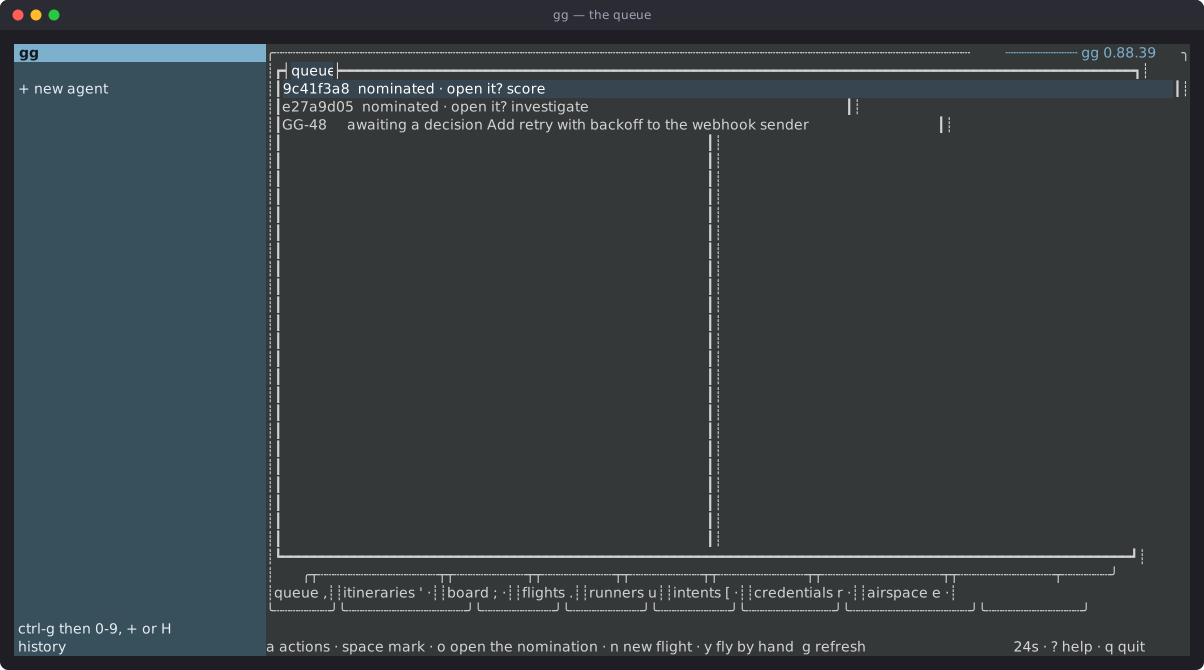
gg includes tmux-like features
Section titled “gg includes tmux-like features”Like tmux, gg is a terminal multiplexer. It runs AI agent sessions in terminals of its own, keeps every one of them running, shows one at a time beside the console, and switches between them with a prefix key, ctrl+g. A person can have several agents working at once and move between them and gg without leaving the terminal or opening another window. How gg works as a terminal multiplexer explains the technical detail, and how it compares with tmux.
The column on the left is the agent column. It lists gg, then every agent session gg is holding, then + new agent, then history. The console opens with the column in place, even before any agent is running.
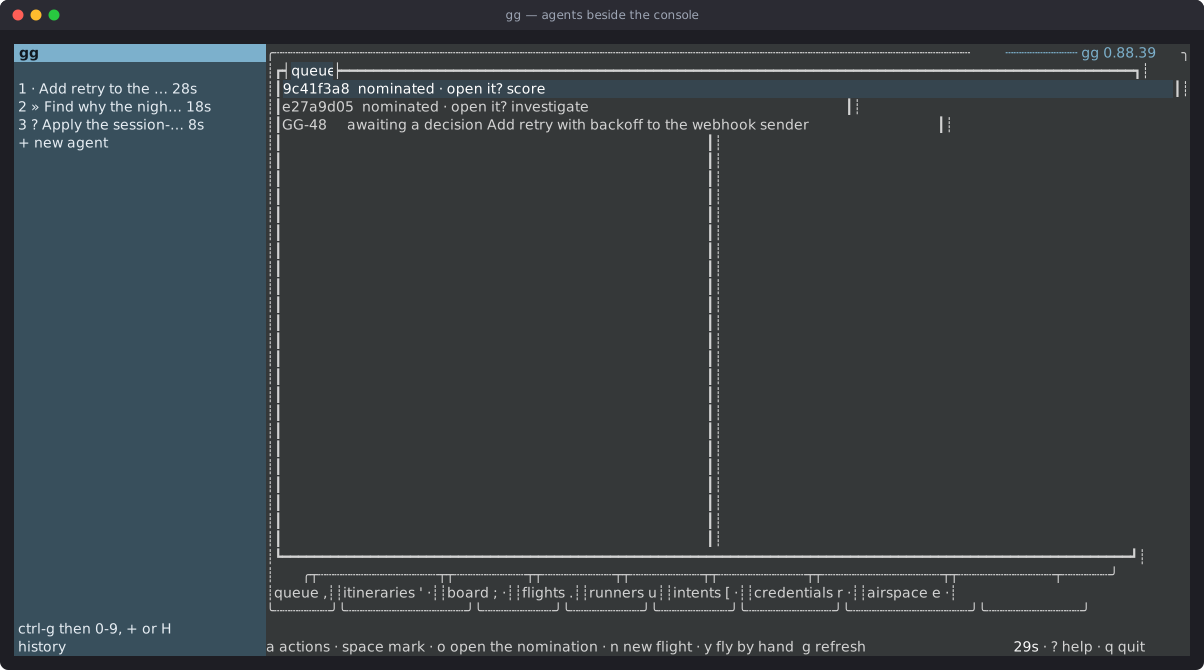
Each agent runs in a terminal of its own inside gg and keeps running while gg, or another agent, is on screen. A row shows:
- the agent’s number, which is also the key that switches to it;
- what it is doing:
»while it works,?when it needs the person, such as to approve a command, and·while it waits for the next instruction; - what it is working on, taken from the agent’s own title;
- how long it has been running, and a
•when its screen changed while it was hidden.
The activity marks come from the agent’s own hooks, so they appear for Claude Code sessions on this machine.
Switching
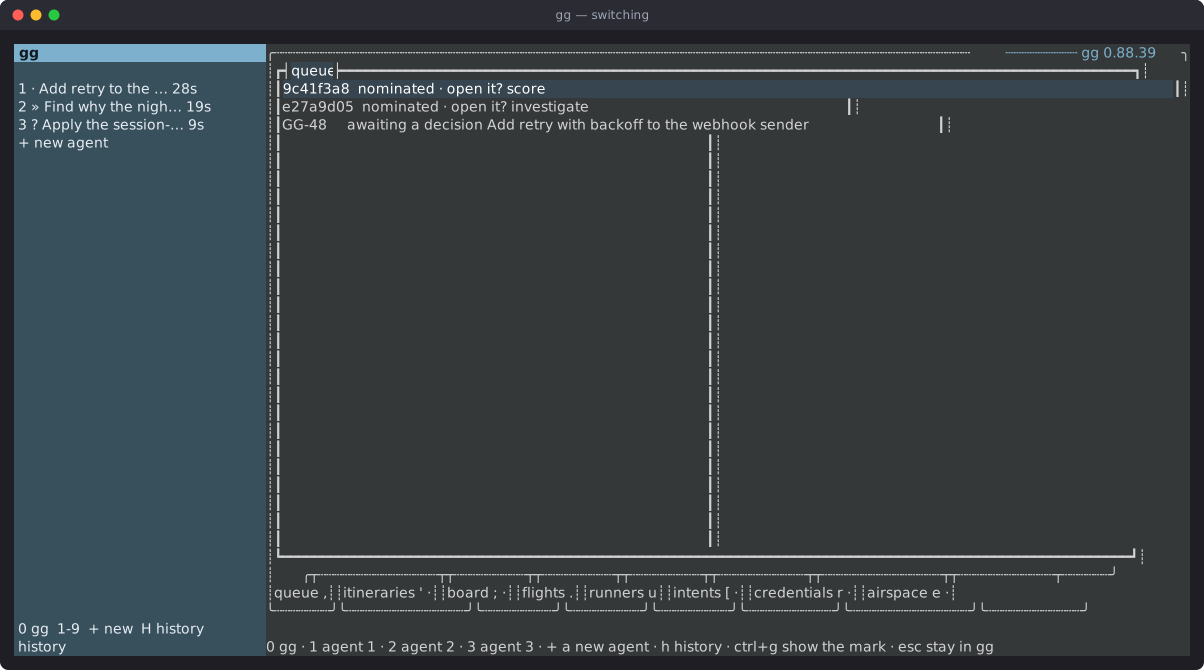
Section titled “Switching”Press ctrl+g, then:
| Key | Shows |
|---|---|
0 |
gg |
1 to 9 |
That agent |
+ |
The new-agent menu |
h |
The history of earlier sessions |
esc |
Stays where it is |
Clicking a row in the column switches to it as well. While ctrl+g is waiting for the next key, the column’s hint and the last line both list the choices:
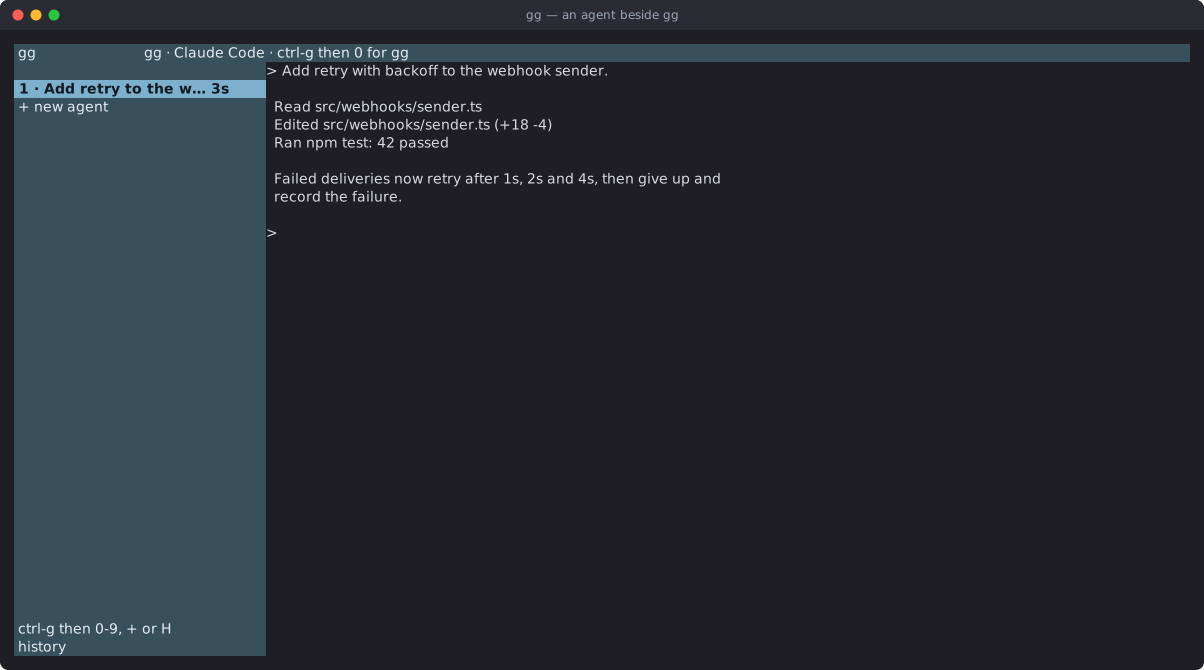
When an agent is on screen, gg keeps the top line, which names the agent and how to get back:
Starting an agent
Section titled “Starting an agent”ctrl+g then +, or + new agent in the column, opens a menu. The arrow keys or j and k move, and enter picks:
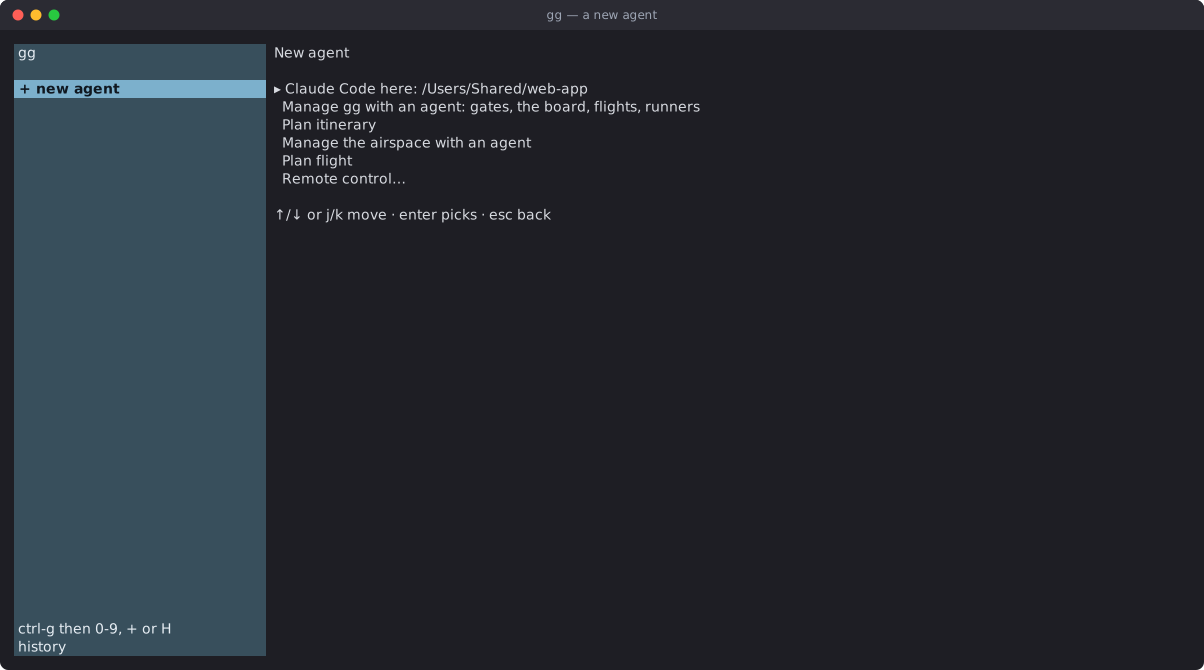
| Choice | What it starts |
|---|---|
| Claude Code here | A plain Claude Code session in the folder gg was started from. |
| Manage gg with an agent | An agent that can read gates, the board, flights and runners freely, and asks the person before every action it takes. |
| Plan itinerary | An agent that drafts a plan of several flights. See Plan with itineraries. |
| Manage the airspace with an agent | An agent that drafts changes to the airspace. See Change the airspace. |
| Plan flight | An agent that helps write a new flight before it opens. |
| Remote control… | A session on another machine in the fleet. See Driving an agent. |
gg holds at most nine agents at once. history lists the plans proposed from this machine and the agent sessions started from it, newest first. Opening a session resumes it in the folder where it ran.
Quitting gg ends every agent it holds, so while any are running, q first says which ones and asks for q again.
Driving an agent explains the column in more depth, including remote sessions.
The tabs
Section titled “The tabs”The bar along the bottom lists every tab, each with the key that jumps to it, and the last line lists the keys that work on the screen in view. tab moves to the next one.
| Tab | Key | What it shows |
|---|---|---|
| queue | , |
Everything waiting on this person. The console opens here. |
| itineraries | ' |
Plans made of several flights, and the flights (legs) each plan is made of. See itinerary. |
| board | ; |
Every nomination, including those already answered, and the watches that make them. v switches between the two lists. |
| flights | . |
Every recent flight, whether or not it needs anyone. |
| runners | u |
The organisation’s machines, with this machine’s runner first. |
| intents | [ |
Work items from the organisation’s trackers, ready to become flights. f flies the selected item. |
| credentials | r |
Every credential, what it is for, and how it rests on this machine. |
| airspace | e |
The rules in force and the documents in the airspace. |
| allowances | v |
What every allowance in the fleet has left. Shown only to an administrator who has turned it on. |
A dot after a tab’s name means the tab has not loaded anything yet. g refreshes what is on screen.
Moving around
Section titled “Moving around”The arrow keys move through any list; j and k do the same. enter acts on the row under the cursor: on the flights tab it opens the flight, on the runners tab it opens the runner, and on the queue it lists what can be done with the row.
esc closes any open window. ctrl+f freezes the screen and hands the mouse back to the terminal, so text can be selected and copied; press it again to continue.
The queue
Section titled “The queue”The queue holds everything that is waiting on this person: flights stopped at a gate, nominations waiting to be opened or declined, and failures that need attention. On a healthy day it can be empty, and the flights tab still shows everything that has run.
Each row says what it is waiting for: a nomination asks whether to open it, and a flight stopped at a gate is awaiting a decision. o opens the selected row.
Opening a flight
Section titled “Opening a flight”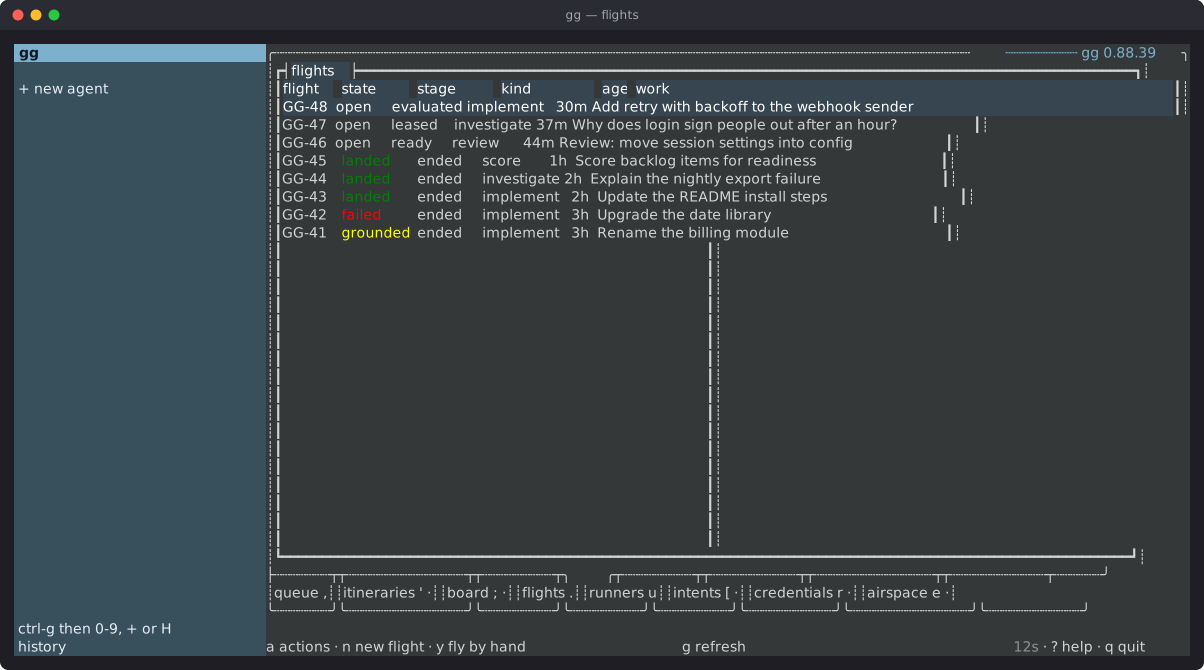
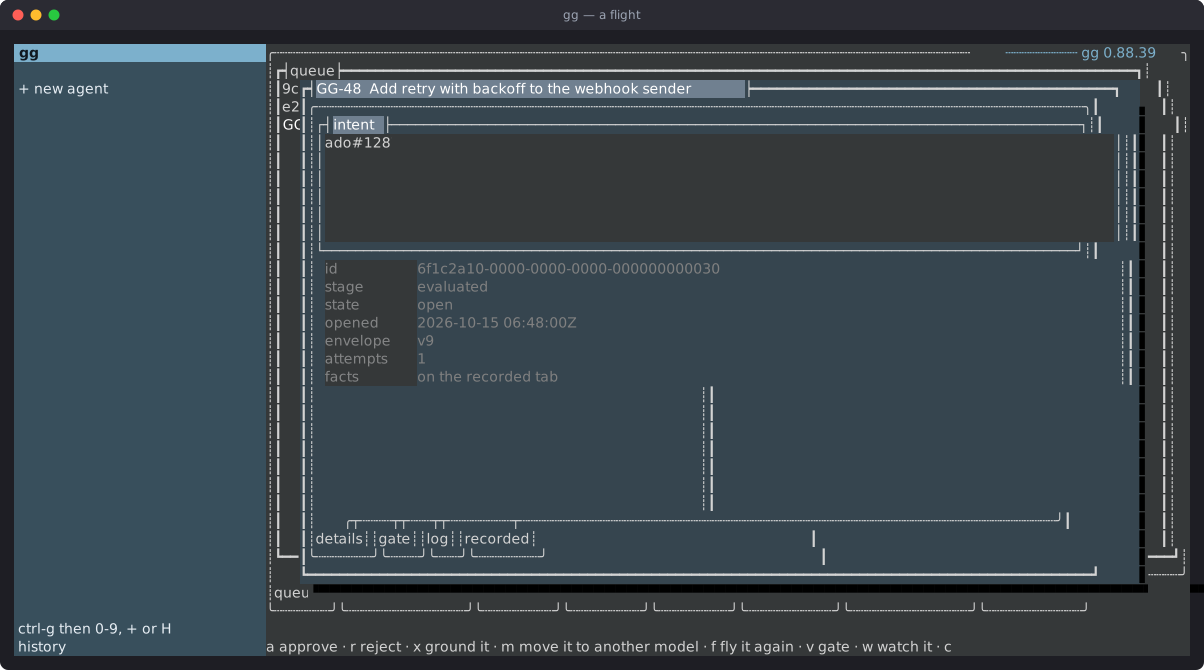
On the queue, o opens the selected flight. On the flights tab, enter does the same. The flight’s window shows its history and its current state, and offers what can be done with it, for example:
aapproves andrrejects, when a gate is waiting on the flight;mmoves the flight to another model;fflies it again;xstops the flight (grounds it), after asking to confirm;ccopies what is shown;esccloses the window.
a on the main screen opens a short list of actions for the flight under the cursor.
Deciding a gate
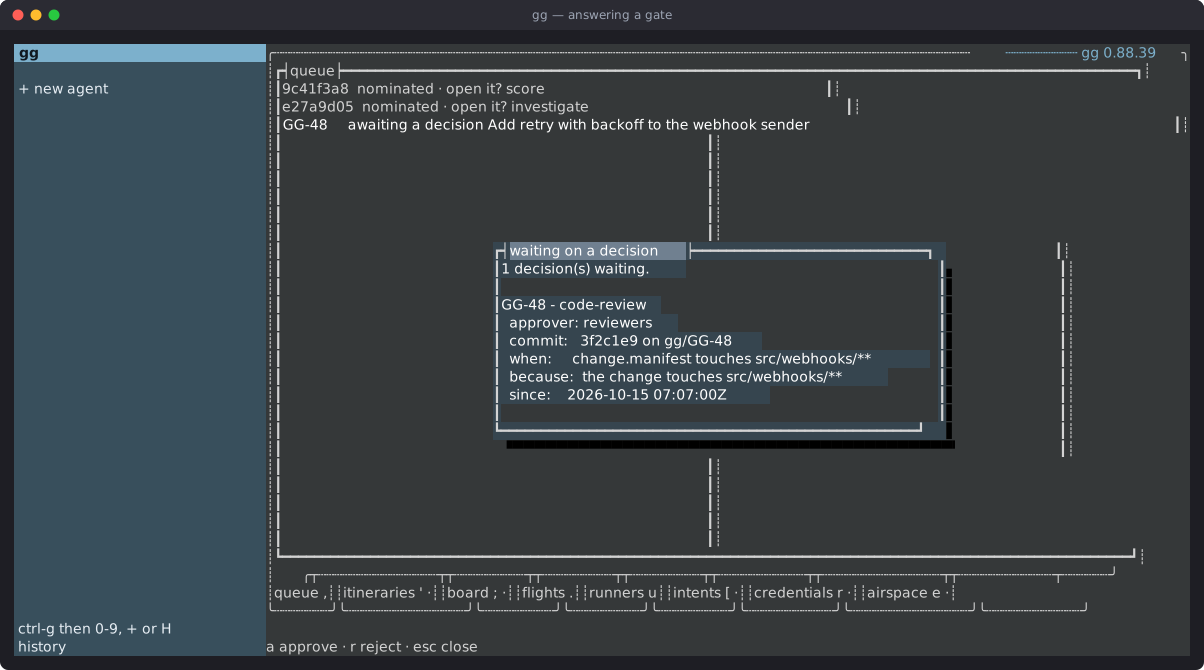
Section titled “Deciding a gate”When a flight is stopped at a gate, select it and press d. The window that opens states the question and who may answer it (the approver). Press a to approve or r to reject. This records the same decision as gg decide on the command line.
Starting a flight
Section titled “Starting a flight”n starts a new flight. The console asks how to write it: w opens the editor to write the description by hand, and other keys compose it, or plan several flights, with an agent. It then asks which kind of work the flight is, and enter opens it.
? opens the help page. It lists every key that works at that moment, grouped by where it applies, and the list matches what the keys actually do. tab turns to the second page, which shows the environment: every setting, and where its value came from. From the help page, e opens this machine’s configuration file in the editor, and o takes any configuration the control plane is offering, as described in Update gg.
Quitting
Section titled “Quitting”q quits. ctrl+c quits from anywhere, including from an open window.
When gg opens the editor
Section titled “When gg opens the editor”Some actions hand the terminal to the editor named by $EDITOR, such as writing a new flight’s description. gg runs the editor inside a terminal of its own and keeps the top row, which reads:
gg · editing — save and quit to come backThis means everything typed into the editor, and everything it draws, passes through gg. gg stores none of it, writes none of it to disk, puts none of it in a diagnostics bundle, and sends none of it off the machine. When the editor exits, gg restores the terminal exactly as it was. Where gg cannot host the editor this way, such as behind a pipe or on Windows, it opens the editor directly and says so.
Next steps
Section titled “Next steps”- Console keys: every key, in every window.
- First flight: open a flight and follow it to the end.